 Stillpin
STILLPIN · PRACTICAL GUIDE
Pin Screenshots on Mac Beside Your Work
A reference image is easier to use when it stays beside your work: a chart beside your notes, a design beside your editor, or a formula beside the paper you are reading. Stillpin can pin images and AI conversations as desktop references.
The short version
Press Command–Shift–S, select a screen region, then press Command–T while the selection is open or choose the pin action. Place the screenshot beside your working window. For an AI conversation, use its pin control to keep the explanation nearby and continue it when another question comes up.
Pin an image from a screenshot selection
Start a capture with Command–Shift–S or the menu bar. Select only the region you want to keep, add any useful annotation, then pin it. Command–T applies while the capture selection is open; it is not a global shortcut for every app.
Move the pinned image to a useful spot beside your document or editor. You can keep more than one reference visible, but leave the part of the working app you are using unobstructed.
- Start a screenshot and select the reference.
- Add a highlight or arrow if it helps identify the detail.
- Press Command–T in the selection, or choose the pin action.
- Return to the app you were working in and place the reference beside it.
Pin an AI explanation and keep its conversation
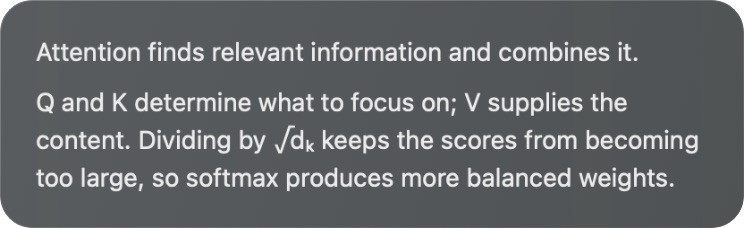
If the screenshot raises a question, choose AI explanation first. Use the pin control when the conversation contains something you want to keep. The desktop card keeps the conversation in a scrollable view rather than turning the whole discussion into a flat image.
Use the original-capture control to inspect the source. The original screenshot and conversation are separate, so you can place each where it is easiest to read. Use the continue-conversation control to ask another question about that same source.
Arrange a small reading workspace
For a paper, start with the formula you are currently reading. Pin its explanation, then capture a related diagram and ask about it separately. Place the two cards beside the document and compare them as you write your own notes.
Keep follow-ups focused on the matching conversation. A new capture starts independently, so a question about a diagram does not silently inherit the discussion about another formula. Reopen a saved conversation from local history when you want to return to that context.
- Paper or technical document in your main working window.
- One image or explanation for the point you are checking now.
- A second reference only when you need to compare the two.
- Your own notes written in the editor you already use.
Image pins and AI conversation pins have different requirements
Screenshot capture, annotation, image pinning and local OCR are free. Creating an AI explanation or sending a follow-up needs an active membership, available AI credits and a connection.
Saved history and pinned conversations remain readable after membership expiry. Sending a new AI request is a separate action that checks access. Local history belongs to this Mac; it is not a shared cloud notebook.
Find and manage the conversation later
From the menu bar, open Recent Conversations → All Conversations… to find earlier discussions. Search for a term from the explanation or the recognized screenshot text, then reopen the relevant result.
Removing a saved conversation from history also removes its saved source capture and closes its corresponding AI card. Use the history controls deliberately when you want to delete the underlying conversation, rather than simply changing the arrangement of your workspace.
Common questions
Can I keep several screenshots visible?
Yes. You can keep separate image pins and conversation cards beside your work. Each newly captured AI conversation starts independently.
Is desktop image pinning a paid feature?
No. Image pinning is part of the free screenshot tools. AI explanations and follow-up requests are membership features.
Can I see the original image while reading an AI card?
Yes. Use the conversation’s original-capture control. The source image and conversation can be positioned separately.