 Stillpin
STILLPIN · PRACTICAL GUIDE
Explain a Screenshot with AI on Mac
A formula, diagram or unfamiliar term can interrupt a reading session. Stillpin lets you start an AI conversation from a selected part of your screen, keep the original image nearby and return to the same question later.
The short version
Press Command–Shift–A, select the passage you want to understand, and read the explanation next to it. Type a follow-up in the same conversation when you need more detail. Pin useful conversations beside your document to keep working with the context in view.
Select enough context to explain the question
Open your paper, PDF or technical document in the app you normally use. Press Command–Shift–A and drag around the relevant passage. You can also start a regular capture with Command–Shift–S and choose AI explanation from the capture toolbar.
For a formula, include its variable definitions. For a chart, include the axes, legend and caption. A small, readable selection with the necessary context is usually a better starting point than an entire page of tiny text.
- Find the passage, formula or diagram you want to understand.
- Start a capture and select that region.
- Choose AI explanation if you started a regular screenshot.
- Keep reading the original while the answer arrives.
Ask a precise follow-up without resending the image
Use the conversation input to ask about a detail in the same screenshot. Stillpin keeps that conversation and its source together, so you can refer to the formula or chart you already selected.
A useful question names the exact part that is unclear. Ask for a numerical example, the meaning of a variable, or the assumptions behind a statement. If the answer seems inconsistent with the source, ask which part of the screenshot supports it and check the original yourself.
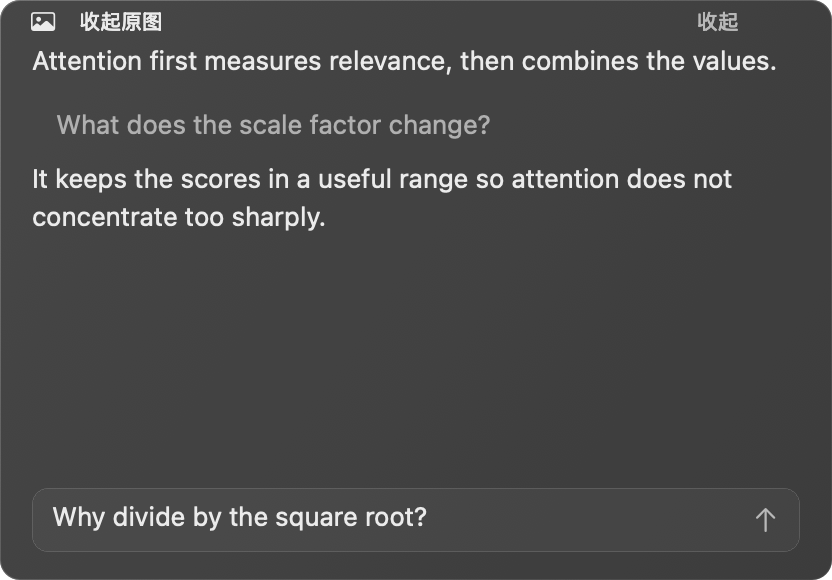
Keep several technical points beside the document
Pin a useful explanation on your desktop, then return to the paper. Start another capture for a different point: a definition, a diagram or a second formula. Each new capture starts an independent conversation rather than inheriting another screenshot’s discussion.
Place the cards beside the document so you can compare the ideas while reading. To go deeper into one point, use that pinned conversation’s continue-conversation control. Inspect the original screenshot with its source control when you need to check the notation.
- One conversation for the formula and its variables.
- Another for a diagram or unfamiliar concept.
- A focused follow-up in the card whose explanation needs more detail.
Choose a reading language and return later
In Settings, choose AI explanation language independently of Translation language. Explanations and follow-ups follow your Mac’s language by default; a new language preference applies to the next request.
Use Recent Conversations → All Conversations… in the menu bar to search saved conversations by words from the discussion or recognized source text. History is stored on this Mac. A new screenshot remains a separate conversation; reopen the earlier one when you want its context.
What to check before relying on an explanation
AI explanations need an internet connection, an active membership and available AI credits. The selected image, text and relevant conversation are sent through Stillpin’s service to the AI provider. Capture and local OCR are separate on-device features.
An explanation can be incomplete or incorrect, particularly when a symbol is too small to read or a chart lacks its caption. Compare formulas, units and cited claims with the source before adding them to your notes. Stillpin is a reading aid; the original document remains your reference.
Common questions
Can I use it with a PDF or a browser?
Yes. Capture the visible region of the document on your screen. You do not need to import the whole PDF into Stillpin.
Does a new screenshot remember an earlier question?
No. A new capture starts independently. Continue or reopen the existing conversation when you want to preserve its context.
Can I ask another question after pinning an answer?
Yes. Use the continue-conversation control on the pinned conversation. You can also reopen saved conversations from local history.